Automatically Organize Your Posts into Series – WordPress Plugin
If you’ve ever had the need to write a series of posts, then you know what a pain it can be trying to organize them and get them connected in a logical and obvious way. The first goal, of course, is to make it so that any reader coming across any post in the series would first know that this post was but one in a series. The second goal is to help them easily navigate to the other posts.

The Organize Series plugin will help you do all that. In fact, it doesn’t just “help” you do it, it does practically everything for you automatically.
After activating the plugin, there are only two simple steps you need to take to get your posts into a well laid out series:
- Create a new series as you would a category
- Assign your posts to your series as you would to a category
1. Create a New Series
After installation, create a title for your new series. Posts > Manage Series
There you will see a set up page like a category set up page. Create your new series by simply giving it a name as you would a category. Once you have posts in your series, you will also be able to easily access and organize them from this page as well.


FREE EBOOK
Your step-by-step roadmap to a profitable web dev business. From landing more clients to scaling like crazy.

FREE EBOOK
Plan, build, and launch your next WP site without a hitch. Our checklist makes the process easy and repeatable.
2. Assign Post to a Series
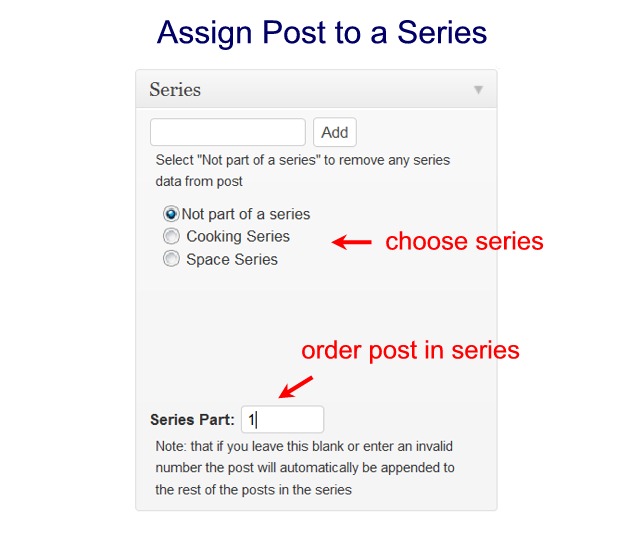
On the right-hand side of your post/edit page, you should now see an option to assign your post to a series. There is also an option to order the post in the series by giving it a “Series Part” number.
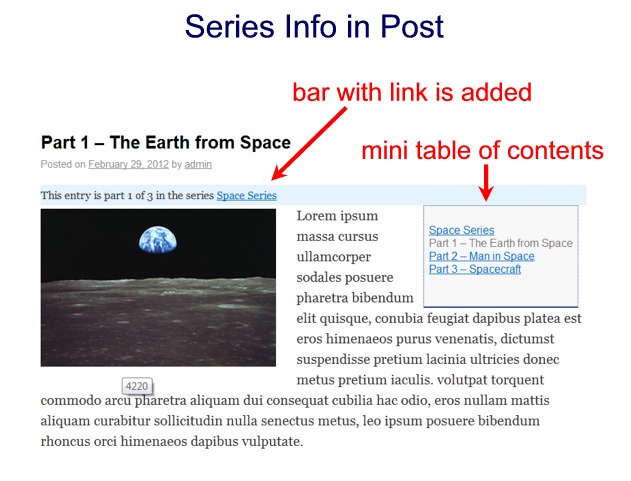
The Result
And that’s it. Your series of posts will now be hooked together, and navigational elements will automatically be added to each post in the series.
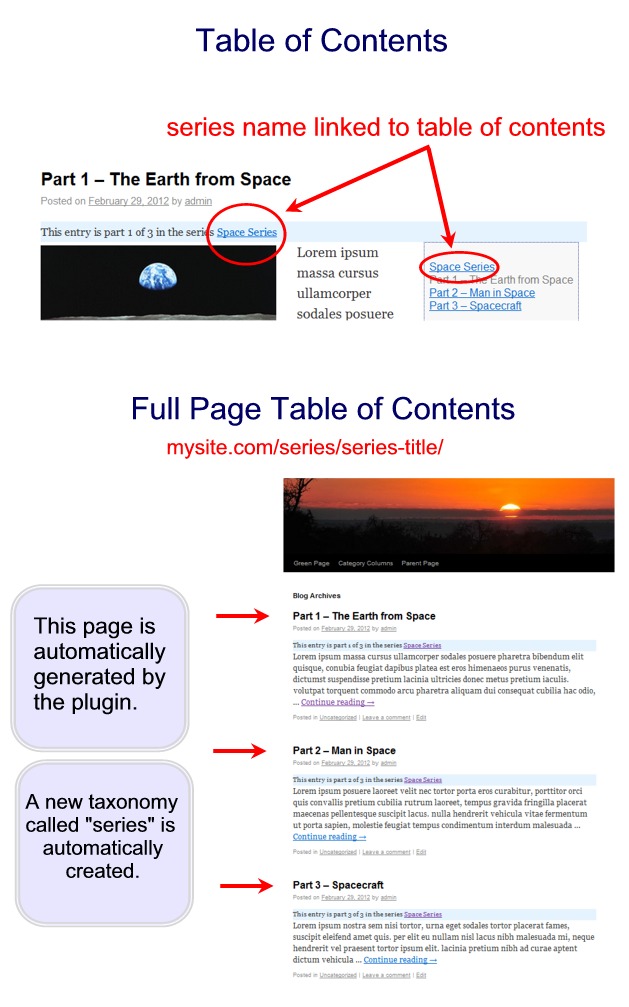
Clicking on the name of series takes you to an automatically generated table of contents for all the posts in the series. This page is created by the plugin and resides at mysite.com/series/series-title/. So as you can see, the new taxonomy “series” has been automatically created.
Unlike so many plugins (too many), the Organize Series plugin is well documented on its WordPress Plugin Directory page. You can check it out there.
Photo: Golf Sequence from BigStock