How to Change Your WordPress Admin Username
One of the simplest ways to help protect your site from would-be hackers is to choose a custom name for your WordPress admin or super admin account.
Hackers will have a difficult time injecting their way into your account with post requests to your wp-login.php page if they can’t guess your username. This creates an extra step for them since they won’t just have to guess your password.
What if you didn’t change your admin username when you originally created your site or network? In this tutorial I’ll show you how to change your default username for both single and Multisite installs through making a small change to your database.

Continue reading, or jump ahead using these links:
- Accessing Your Database
- Finding Your Database Name
- Single WordPress Installations
- Multisite Installations
Accessing Your Database
You can access your WordPress database in two ways: through cPanel, or via The Hub.
Those familiar with WordPress.org know that cPanel is web hosting control panel that allows users to manage files. Its simple GUI enables administration through a standard web browser using a three-tier structure.
The Hub is WPMU DEV’s snazzy, snappy, smart UI panel that allows you to easily monitor, optimize, and update unlimited sites from a single location. Get up to speed with instant site status overviews, label & organize your sites, and much more with The Hub’s intuitive filtering tools.
cPanel
If your web host uses cPanel, they will provide information on accessing it, often via a link sent through email. It may also be possible to access it through a browser by typing the following:
- HTTP — type your website name, with :2082 added to the end >> Example: http://yoursite.com:2082
- HTTPS — type your website name, with :2083 added to the end >> Example: https://yoursite.com:2083
Another option that might work (depending on your host) is: https://yoursite.com/cpanel
From the cPanel, look for the Databases section, then click the phpMyAdmin icon. Then under Databases on the homepage, click on the database you want to access.
The Hub
From the home page in The Hub, select the site you want to access, and click on its name.
From the Overview tab, go to Database, and click on Manage. This will open phpMyAdmin, and you can proceed with any actions here as you would having gone through cPanel.

Finding Your Database Name
We need to make slight changes to your database, so you’ll need to know what it’s called, in order to know which one to edit. If you’re not sure, you can find out by checking your wp-config.php file in the root of your WordPress files.
In cPanel, select the File Manager button under the Files section. If the File Manager Directory Selection pop-up appears, select the Web Root option or the Document Root for your site in the drop down list.
Select the wp-config.php file and click the Edit button at the top of the page. Look for the code similar to the example below:
Your database name will be listed on line three of this example where your_db is written. Once you know your database’s name you can go ahead and change its tables.
Single WordPress Installations
From the phpMyAdmin, click under Databases on the homepage. Then locate the wp_users table.

Click on it and find your admin username on the list.

Click the Edit button to insert values into the table option. Type in a new username in each of the fields where it’s displayed.

At the very least, you need to edit the user_login field to change your username. If you would like to also change how your name is displayed on your site’s front end, change the display_name field.

FREE EBOOK
Your step-by-step roadmap to a profitable web dev business. From landing more clients to scaling like crazy.

FREE EBOOK
Plan, build, and launch your next WP site without a hitch. Our checklist makes the process easy and repeatable.
The user_nicename field is the slug that will appear in the URL for places like the author archive page. What you enter here should not include spaces.
It’s usually the same as your login username, but in cases where your username doesn’t look so user friendly like “HeartPrintedUnderpants23,” you can choose a different name to appear as the slug.
When you’re done, save the changes you have made.

At the bottom of the table options, you’ll see a set of drop down boxes. Set the first one to Save and the second to Go back to previous page, then click Go to save your changes.
Once you’ve made these changes, you’re done and you can now use your new custom username to log in. If you’re using Multisite, there are a few more steps you need to complete.
Multisite Installations
To change your super admin username for your network, first complete the steps above. Once you’re done, go back to your database tables list and find the wp_sitemeta table.

Click on it to reveal all its table options. When they load, look under the meta_key column for the site_admins row.
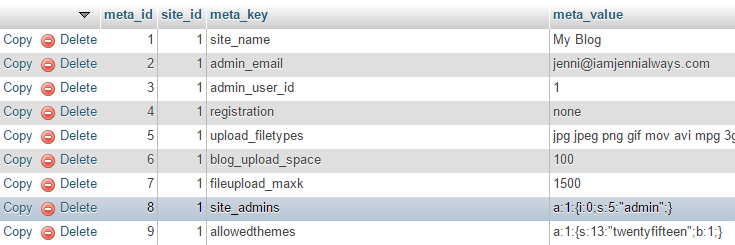
Click the Edit button on the left of that row. Next, change the values for your admin username in the meta_value field.

There are two things you need to change. The first is your username. The second is the value for the character count of your username.
In the above example, the default username is shown and you would need to change admin and the number five which is displayed before the name. Since the username has five characters, the number five is listed before it.
This number may be different for you if your username is longer than five characters. The meta_value may also look different if you have other permissions attached to your admin account. If this is the case, just look for the same values among the code.
If you wanted to change your username to “HeartPrintedUnderpants23,” for example, you would change the values to look like this:
Admin has been changed to the new username and the number “five” has been changed to “24” to reflect the number of characters in the new username.
Once you’re happy with your new username, click Go at the bottom to save the changes you made.
Conclusion
If you’ve followed along then you have successfully changed your default username to a custom one by making a few small tweaks to your database.
You have also made it a bit more difficult for hackers to get into your site, but this isn’t the only change you should make to increase the security of your site.
If you would like more ways to make your site or network safer, check out our posts How To Easily Secure Your WordPress Site for Free, The 16-Step Checklist for Securing Your WordPress Site, or The Ultimate Guide to WordPress Security, to name a few.
You can find even more helpful posts by entering the term “security” in the search box on our blog.
If you would like an alternative that doesn’t require making changes to your database, there is another option. You could create a new user and select administrator permissions for it. Finally, you can delete the original admin user.
Just be aware that some plugins require additional permissions that cannot be selected when you create a new administrator account. That’s why changing your username in your database as we’ve covered in this post is often a better solution.
Editor’s Note: This post has been updated for accuracy and relevancy.
[Originally Published: April 2015 / Revised: March 2022]
Jenni McKinnon Jenni has spent over 15 years developing websites and almost as long for WordPress as a copywriter, copy editor, web developer, and course instructor. A self-described WordPress nerd, she enjoys watching The Simpsons and names her test sites after references from the show.