Going All Google with WordPress Plugins
Peanut butter and jelly. Bonnie and Clyde. Yin and yang. Horse and carriage.
Some things just seem to naturally go together.
If you run a WordPress site, then unless you’re running a very unusual site in a very unusual way, you probably have it connected to Google in one way or another. Maybe it’s through Analytics. Or maybe it’s with Adsense. Maybe you use Google Maps. Or maybe you’ve embedded a YouTube video or two.
Whatever it is, if you stop and think about it, you’re probably connected.
Below we’ll give you some more potential connections – seven to be exact. These plugins can help you connect to or integrate Google services in all sorts of ways.
1. Google Adsense
The “Google Adsense” plugin, as you might imagine, lets you easily place Google adsense ads into your site. In addition, you can also change the look of your ads with it – changing the corners, the color of the elements, etc.
2. SmartCrawl
Our very own free plugin, SmartCrawl, allows you to run SEO reports, have complete SEO control for multisite, run SEO crawls when new content is added, and much more. It’s the perfect plugin to rank higher on Google and get ahead on SERPs.
3. Google Apps Login
The Google Apps Login lets users who are already logged into Google to breeze through your WordPress login as well. The plugin uses OAuth2 authentication (as recommended by Google). The plugin author has listed a few known conflicts with other plugins, so you might want to check that first.
4. Google Maps
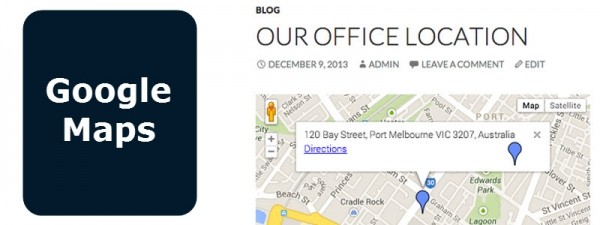
Another WPMU DEV plugin, the Google Maps plugin lets you easily embed Google map to any Post/Page or in a widget. You can customize the maps to suit your needs, save maps with street view, make you map dynamic with panoramic images, add your own CSS, and more.
FREE EBOOK
Your step-by-step roadmap to a profitable web dev business. From landing more clients to scaling like crazy.
FREE EBOOK
Plan, build, and launch your next WP site without a hitch. Our checklist makes the process easy and repeatable.
5. Create WooCommerce Product Feeds For 40+ Merchants
The Create WooCommerce Product Feeds For 40+ Merchants plugin creates a feed for your WooCommerce site that integrates with your Google Merchant Center account. You can output an XML feed from any category.
6. Google Sitemap
Google XML Sitemaps generates a specialized sitemap for your site that you then submit to Google to help them index your site.
7. Translate WordPress – Google Language Translator
The Translate WordPress – Google Language Translator plugin lets you insert the Google Language Translator right into your WordPress site via a shortcode. You can even turn off the Google branding with it.





Whether it be for rankings, Google Adsense, maps, or more, Google can help enhance your site in many ways with the help of a plugin.
Tags:
Aileen Javier Aileen has over 10 years of experience in content writing and content marketing. She’s handled content teams, planned editorial calendars, and managed projects. She’s also written blogs, web copy, social media posts, and email newsletters for brands in different industries.