Reset Your Lost WordPress Password without Breaking a Sweat
7 Easy Steps to Setting a New WordPress Admin Password

Panic!
You forgot the Admin password to your WordPress site, and when you try to get it sent to you, it doesn’t work!
What are you going to do? You’re the ADMINISTRATOR!
Not to worry. There is a relatively simple process you can go through to reset your lost WordPress admin password. This process involves going into your WordPress database, and that may sound a little scary to some, but trust me when I tell you this is a very simple, straight-forward procedure.
Cpanel – Do You Have Access?
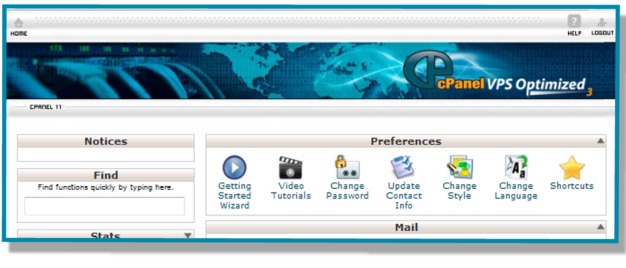
You will need to log into your Cpanel with this tutorial. If you do not have Cpanel, then you will need to find your way to your WordPress database. If you do not have access to Cpanel with your host, then you will need to call your webhost and ask them to help you reset your password.
Step 1 – Get Password Encrypted
Passwords in the WordPress database are encrypted with a system called MD5. In other words, when you look at passwords in your database, you don’t see the actual passwords. You see a long string of letters, numbers, and symbols.
So the first thing you will need to do is to go get your password encrypted in the MD5 format. You can search for a tool that helps you do that. Or you can go to the following site:
https://www.md5online.org/md5-encrypt.html
When you put in your password and hit the “Encrypt!” button, you should get an encrypted version of your password that’s a big long string of numbers and letters and maybe some symbols that looks something like this: 34719d$beeabb9260a5c854bc85b3e44.
OK, save that encrypted password for now. We’re going to use it in a few minutes.
Step 2 – Log Into Cpanel
Log into your Cpanel. You can access your Cpanel by going to yourdomain.com/cpanel.
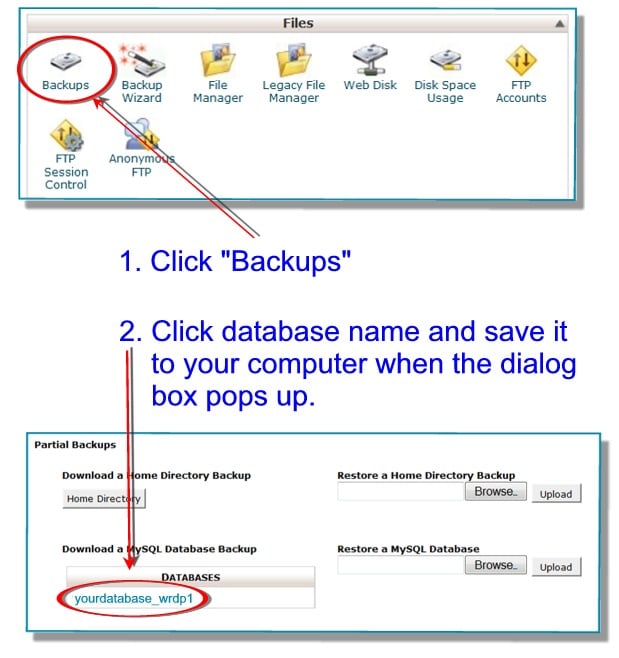
(Note: It is a good idea to back up your database before going into it and changing things. Although changing your password is very simple, you never know what might happen. You might find yourself clicking and deleting things like a madman for no apparent reason.)
Follow this short process to back up your database from within Cpanel.
Step 3 – Open phpMyAdmin
Find the icon titled phpMyAdmin and click that to open it.


FREE EBOOK
Your step-by-step roadmap to a profitable web dev business. From landing more clients to scaling like crazy.

FREE EBOOK
Plan, build, and launch your next WP site without a hitch. Our checklist makes the process easy and repeatable.
Step 4 – Open Your Database
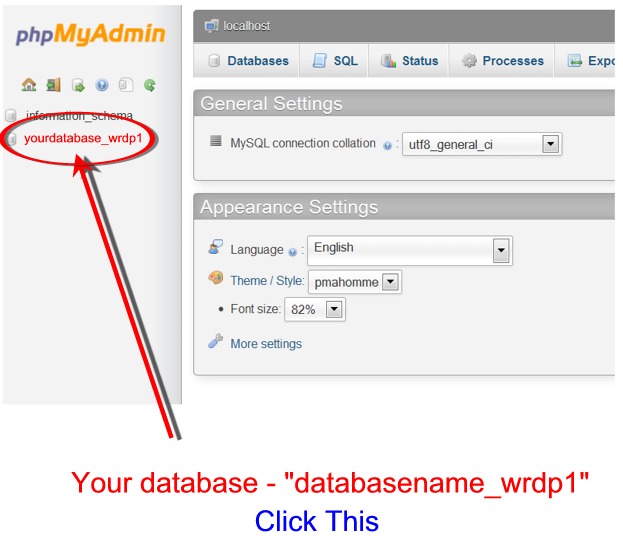
Find your database on the left hand side.
The name of your database should look something like myname_wrdp1. If you have more than one database, then you will need to choose the right one. For example, if you have three different WordPress installs on your site, you will have a choice of databases that might look something like this:
- myname_wrdp1
- myname_wrdp2
- myname_wrdp3
Most people will probably only have one, however.
When you find your database, click it.
Step 5 – Open WP_Users Table
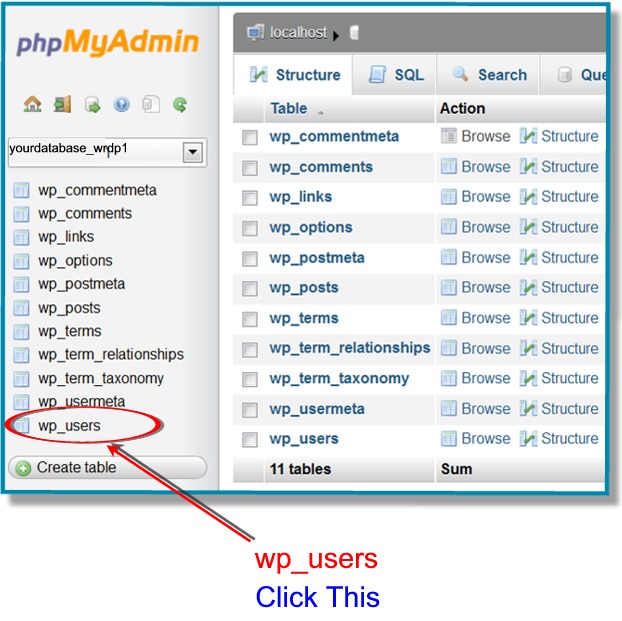
Find the “database table” called wp_users on the left hand side and click that.
Step 6 – Find User
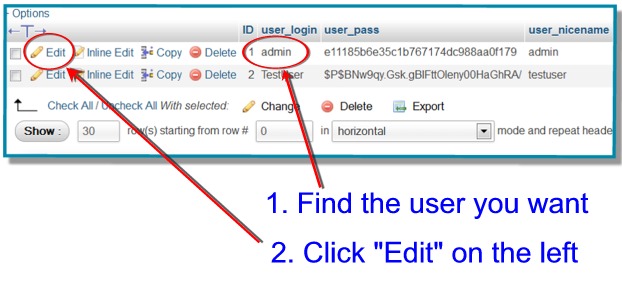
Find the user you want to edit (in this case we’re editing the “admin”), and then click “Edit” on the left hand side.
Step 7 – Replace Password
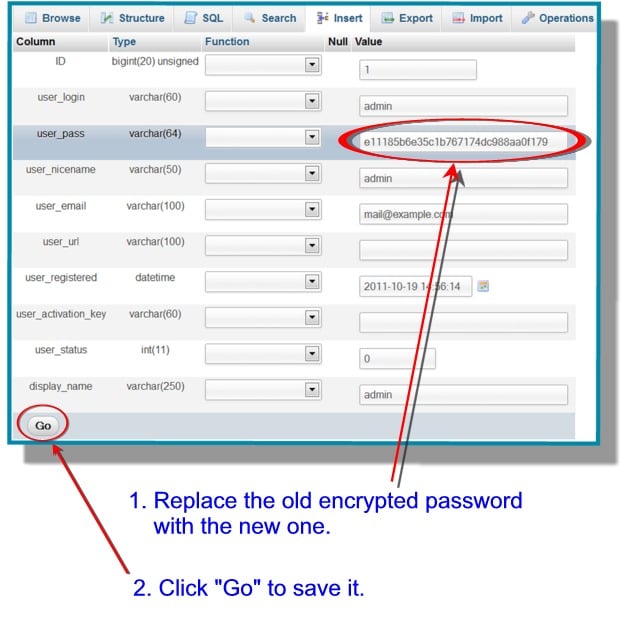
Find the old encrypted password (in the user_pass row), replace that with your new encrypted password (that you got in Step #1 above), and click “Go” at the bottom to save it.
Finito
And that’s it. If something doesn’t work for some reason, then just go through the steps again.
(p.s. You might want to bookmark this post. No one ever plans on being locked out of their own site, but you never know when it might happen.)
(Thanks to skippyjon for the image.)
Tags: