WordPress, meet iPad: How to Install WordPress from Your iPad

June 6, 2011  | 
30 Comments

WordPress and iPad are two pretty significant things in my life right now. Recently I bought my very first iPad and, inbetween playing World of Goo, making music on my Korg, and buying apps, I’ve been trying to figure out if I can replace my laptop with my iPad so it can be my number one on-the-go device. I want my iPad to be more than a toy and actually be useful beyond playing Solitaire (which is what I have done most of on my iPad).

This week, I want to see if I can build my brand new portfolio website using only my iPad. Everything, from installation, to images, graphics and content - can I do it on my iPad? I’ll be posting about it all week. As yet, I’m not quite sure how successful I will be so you could witness a massive flop.

In the first instance I thought “yeah, easy!” I went to download WordPress using Safari and realized that I couldn’t actually download the files as the iOS doesn’t have a native file system. Not so easy as I thought – spanner very much in works. But I endeavored and today have seen much success with installation. Let’s get to it:

Tutorial: Installing WordPress from your iPad

You could, if your web hosting offers it, install WordPress using Fantastico – one click and WordPress is installed. But that wouldn’t make for a very interesting post, and anyway, not everyone has access to Fantastico. Instead I knew I had to figure out a way to download WordPress, edit wp-config and FTP the whole thing back up onto my server. This would involve apps and it took a while to figure out the right tools, but I found them. Neither are free but these apps are cheap and definitely worth it.

iCab is a browser for your iPad. Unlike Safari, you can use it to download files and then transfer them to other programs such as Dropbox or your FTP. Not only that, but it uses tabbed browsing so you don’t have to keep zooming in and out of your browser to move pages.
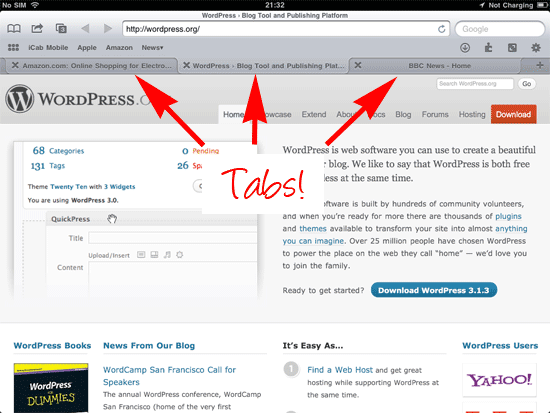
icab iPad browser with tabs

Goodreader is an app for reading and editing files. It was built for docs, txt and pdf but it also has great FTP functionality which you can use to upload WordPress and other files on to your server. I did try out FTP on the Go but (after forking out £5.99 for it) I discovered that you can’t upload folders and the idea of recreating the whole file system on my server made my eyes hurt. That’ll teach me to read the reviews in the future.

Tip:  A handy shortcut is to doubletap on your home button. This brings up a toolbar which makes it easy to navigate around your programs.
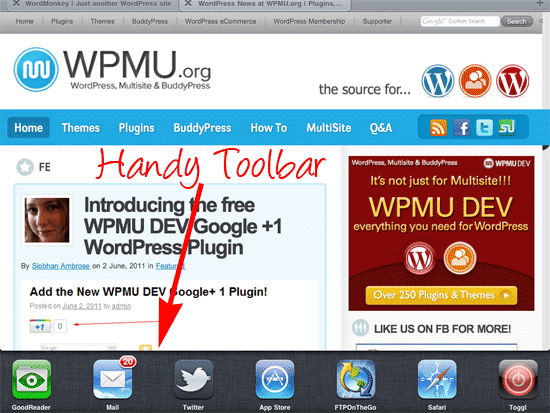
toolbar on iPad

Let’s go through the normal WordPress installation sequence. I’m assuming that you have some knowledge of installing WordPress already:

1. Create your MySQL database

2. Open iCab and navigate to WordPress.org. Click Download

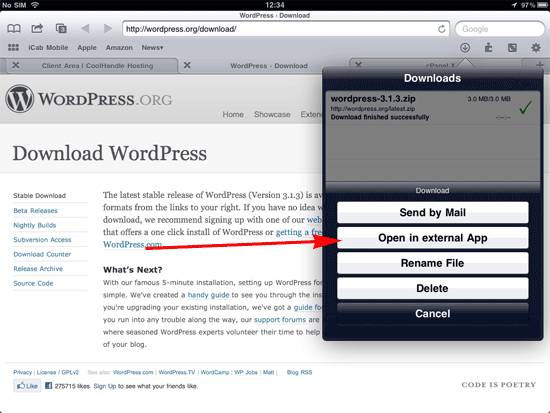
3. Click the Download icon in iCab:
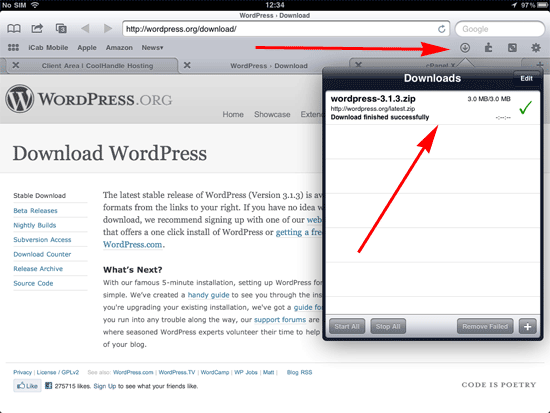
Wordpress in download folder
4. Select “Open in external App

open in external app option in iCab
5. Choose GoodReader. The file will be transferred to Goodreader.

transfer the file to goodreader
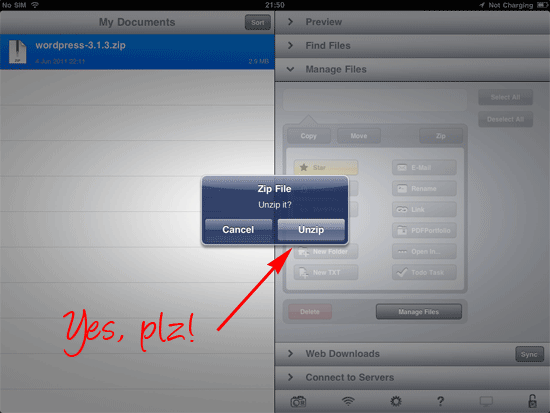
6. Unzip the file

unzip WordPress
7. Find wp-config-sample.php. Select it and choose to view in TXT viewer

Text viewer
8. Add your database name, username and host.

wp config file
9. Add your unique keys and salts. Save

10. Select “Manage Files”
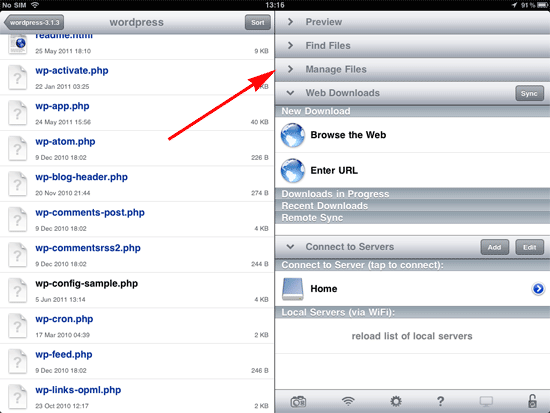
Manage files tab on right hand side
11. Select wp-config-sample.php and then click rename.
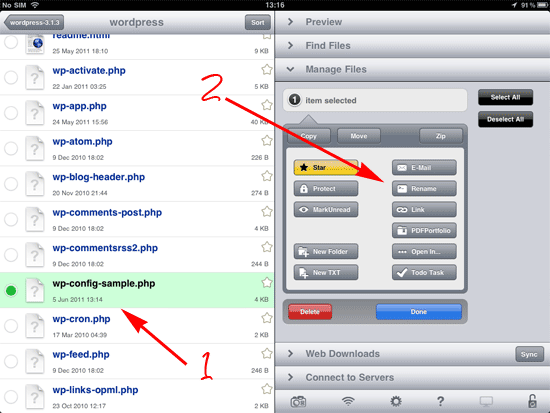
rename file
12. Rename the file wp-config.php

file rename to wp-config
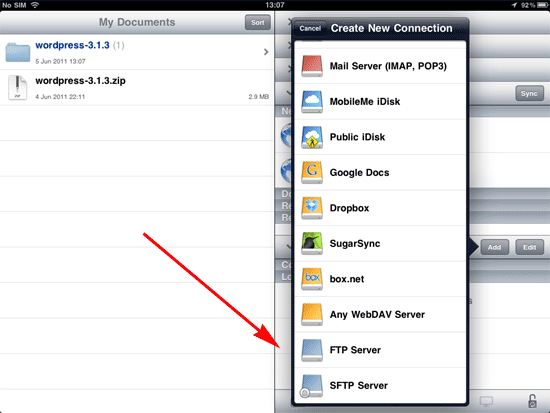
13. Add an FTP server.

Add FTP server

These will be your normal FTP details.
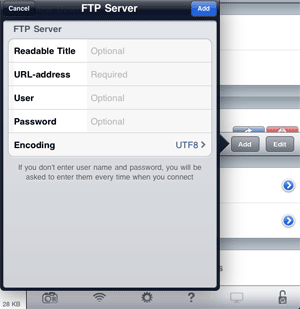
FTP settings
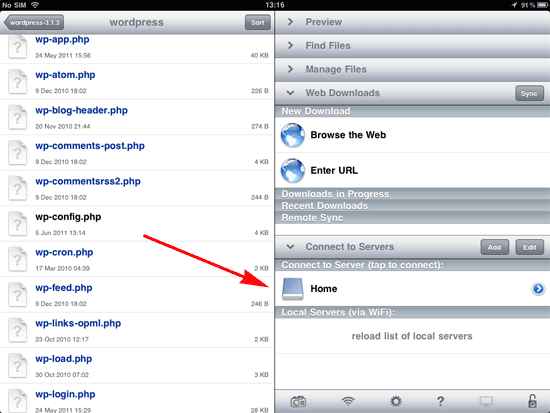
14. Tap on your server to connect

connect to FTP
15. Navigate to the folder you want WordPress to live.

FTP folder
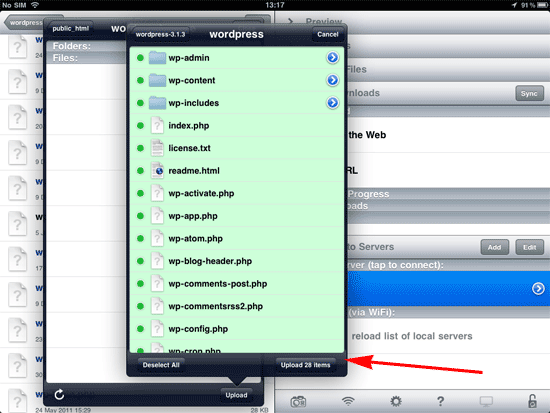
16. Upload.

upload files

This is so much slower than standard FTP so be prepared to wait. It took around 10 minutes for me.
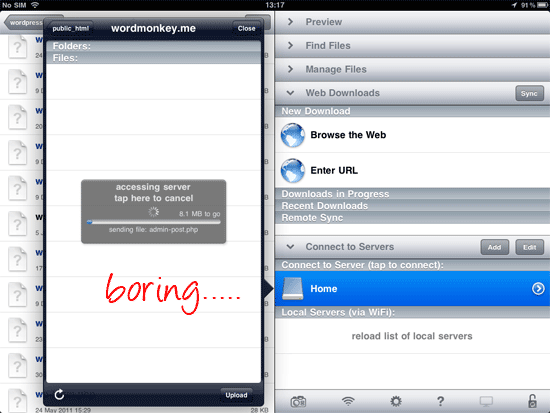
files uploading
17. Navigate to your domain. If you’re lucky you’ll get the install page. If you’re unlucky, like me, you’ll get a 500 Internal Server Error:

Internal Server Error

Poor me. Here it is in all it’s glory.

Internal Server Error
The server encountered an internal error or misconfiguration and was unable to complete your request.
Please contact the server administrator, me@mysite.com and inform them of the time the error occurred, and anything you might have done that may have caused the error.
More information about this error may be available in the server error log.
Additionally, a 500 Internal Server Error error was encountered while trying to use an ErrorDocument to handle the request.

To solve this problem I had to create and edit a .htaccess file. GoodReader doesn’t seem to like .htaccess and it adds a .txt onto the end. To solve this I downloaded a .htaccess file from another one of my sites via FTP and added the following code:

# BEGIN WordPress
RewriteEngine On
RewriteBase /
RewriteCond %{REQUEST_FILENAME} !-f
RewriteCond %{REQUEST_FILENAME} !-d
RewriteRule . /index.php [L]
# END WordPress

(Thanks to Edwardkhoo for this fix)

Then I uploaded the .htaccess file onto my server.

Hopefully you won’t have to go through all of this rigmarole. Instead you should visit your page and you’ll have the setup screen:

wordpress installation page
Fill in your details.

18. You are done!
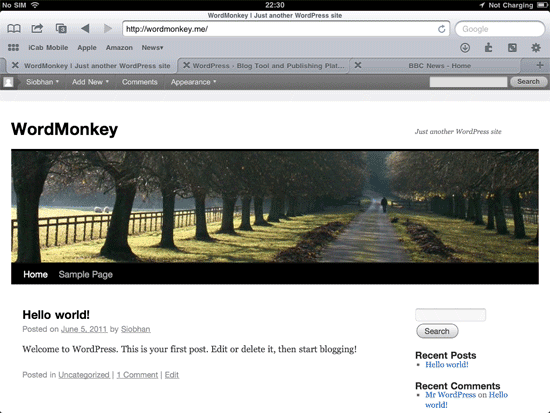
wordpress installed using iPad
A little bit more complex than the usual five minute install but it’s definitely do-able.

Tomorrow I’m going to install my new theme and get it looking snazzy.

Featured Plugin - WordPress + Google Maps = Perfect

Simply insert google maps into posts, sidebars and pages - show directions, streetview, provide image overlays and do it all from a simple button and comprehensive widget.
Find out more

Featured Plugin - Send beautiful html email newsletters, from WordPress!

Now there's no need to pay for a third party service to sign up, manage and send beautiful email newsletters to your subscriber base - this plugin has got the lot.
Find out more

Featured Plugin - Start your own Quora / StackOverflow / Yahoo Q&A site

It's now incredibly easy to start your own Q&A site using nothing more than WordPress - The Q&A plugin simply and brilliantly transforms any site, or page, into a perfect support or Q&A environment.
Find out more

Featured Plugin - Every great SEO tweak you need, in one snazzy bundle

Fully integrated with the SEOMoz API, complete with automatic links, sitemaps and SEO optimization of your WordPress setup - this is the only plugin you need to help you rank your site number 1 on Google - nothing else compares.
Find out more

Featured Plugin - Open an Online Store with MarketPress

Out of all the WordPress ecommerce plugins available, this has got to be the winner - easy to configure, powerful functionality, multiple gateways and more. A simply brilliant plugin!
Find out more

Featured Plugin - Start Your Own Powerful Membership Site

If you're thinking about starting a paid, or just private, membership site then this is truly the plugin you've been looking for. Easy to use, massively configurable and ready to go out of the box!
Find out more

Featured Plugin - Easily integrate your WordPress site with Facebook

Would you like to add Facebook comments, registration, 'Like' buttons and autoposting to your WP site? Well, The Ultimate Facebook plugin has got that all covered!
Find out more

Featured Plugin - Turn any WordPress page into a fully featured wiki!

To get a wiki up and running you used to need to install Mediawiki and toil away for days configuring it... not any more! This plugin gives you *all* the functionality you want from a wiki, in WordPress!!!
Find out more

Featured Plugin - Host sites, get paid, just like WordPress.com

If you've ever wondered how you could offer a paid site management and hosting service, then this is the plugin for you. Offer a freemium or paid service, for any niche you like, it's powered Edublogs.org to success already!
Find out more

30 Responses to WordPress, meet iPad: How to Install WordPress from Your iPad

  1. Great challenge! I’ll follow to see how you get on through the week. :)

  2. Pingback: WordPress, meet iPad: How to Install WordPress from Your iPad … « FaceBook Car Town

  3. I think you could have compressed the process a little bit by using TextTastic as the programming editor and FTP tool in one solution. TextTastic also supports DropBox.

  4. Am i missing something painfully obvious, or couldnt you just use the WordPress app!

  5. I actually gave myself almost the same challenge last year. I still had an original iPhone and wanted to see how fare I could push the device as a productivity device. So I successfully installed WordPress, added a theme, created and uploaded a logo, edited CSS, wrote two full pages of conten, shot, edited, and uploaded photos, and shot edit and uploaded video to the site… All with an iPhone 1st generation.

    It can be done. It’s way easier with an iPad… Or even an iPhone four. I make my living building websites for client and I regularly install, manage, and demonsites from the iPad.

  6. @Bill Yes, it looks like you could use Textastic although Goodreader also gives you text editing and FTP in one program (for considerable cheaper).

    @Sam You can use the WordPress app to create content on your WordPress site but you can’t use it to actually built the website.

    @Richard – that’s pretty impressive! I’m having trouble with the logo at the minute, although I think that is more down to my logo making skills as opposed to any deficiency with the iPad itself.

  7. Pingback: WordPress, meet iPad: How to Install WordPress from Your iPad … | iPad | Gamer Vortex

  8. it’s perfect!

  9. That’s a really great post. Thank you for sharing. I use WordPress too…so that was helpful for me as well.

    Regards

    Dave

  10. nice post,Really helful for new ipad users …Great work

  11. nice post,Really helpful for new ipad users …Great work

  12. Have you tried the app iSSH? You can install wordpress using terminal commands. No downloading required. Files go straight from wordpress.org to your website.

  13. Pingback: Building Your WordPress Website with iPad in Mind | WordPress News at WPMU.org

  14. Pingback: SFCite | Blog | Building Your WordPress Website with iPad in Mind

  15. I’ve often wondered if it could be done. Now that I see it can, I think I’ll stick to doing my installs on my macbook instead. But very cool to see you conquer it!

  16. Thanks for sharing!

    I tried the same with FTP on the Go (I also forked out £5.99 without reading the reviews properly) and Gusto (dito) and gave up due to cumbersomeness of apps not designed for the challenge.

    I’ll check out Goodreader. How’s the theme installation coming along?

  17. @Jay – managed to get the theme installed using Goodreader as well. You can check it out here: http://wpmu.org/wordpress-meet-ipad-getting-to-grips-with-your-theme/

  18. Pingback: Should you go through the trouble of designing your website for the Ipad? | Boulder Web Marketing

  19. Pingback: Building Your WordPress Website with iPad in Mind | Multidots Solutions

  20. Pingback: WordPress, meet iPad: How to Install WordPress from Your iPad … | Vickkumar.com.au

  21. Pingback: What Can We Expect in WordPress 3.3?

  22. Pingback: What Can We Expect in WordPress 3.3? | Pros Global TV

  23. This is really attention-grabbing, You are an excessively skilled blogger. I’ve joined your feed and look forward to looking for more of your great post. Additionally, I’ve shared your web site in my social networks

  24. Thx for this great post Siobhan. I just have a question. In order to present my themes to my clients. I would like to do the same thing but in local (no internet connection). Do you think it’s doable?

  25. As far as I know it’s not possible right now.

  26. Pingback: WordPress 3.3: Hot or Not?

  27. Pingback: WordPress 3.3: Hot or Not? | SNS Online

  28. Pingback: wp-coder.net » WordPress 3.3: Hot or Not?

  29. Pingback: A Free wordpress newsletter » WordPress 3.3: Hot or Not?

  30. Hi, Is it really possible to install WordPress from iPad?

    http://touchwebsitesolutions.com/

Click on a tab to select how you'd like to leave your comment

Leave a Reply

Your email address will not be published. Required fields are marked *

*

You may use these HTML tags and attributes: <a href="" title=""> <abbr title=""> <acronym title=""> <b> <blockquote cite=""> <cite> <code> <del datetime=""> <em> <i> <q cite=""> <strike> <strong>

Subscribe without commenting